

First-person shooter (FPS) games require precision, speed, and smooth gameplay to maximize performance. The right settings can make a significant difference in reaction time, accuracy, and overall experience. This guide will help you optimize your settings for the best performance and competitiveness.
1. Graphics Settings: Prioritizing Performance Over Visuals
High frame rates are crucial in FPS games, as they reduce input lag and make aiming smoother. Here’s how to tweak your graphics settings:
- Resolution: Set it to your monitor’s native resolution (e.g., 1920×1080) for the best clarity.
- Refresh Rate: If you have a 144Hz or 240Hz monitor, ensure your game is set to match the refresh rate for the smoothest gameplay.
- Graphics Quality: Lower settings for textures, shadows, and post-processing effects to improve FPS. High settings may look better but can introduce lag.
- Anti-Aliasing: Turn off or set to the lowest possible option. FXAA or TAA may be good compromises.
- V-Sync: Disable it to reduce input lag unless you experience screen tearing.
- Motion Blur & Depth of Field: Turn these off for clearer vision and faster reactions.
2. Mouse Sensitivity & DPI: Finding the Right Balance
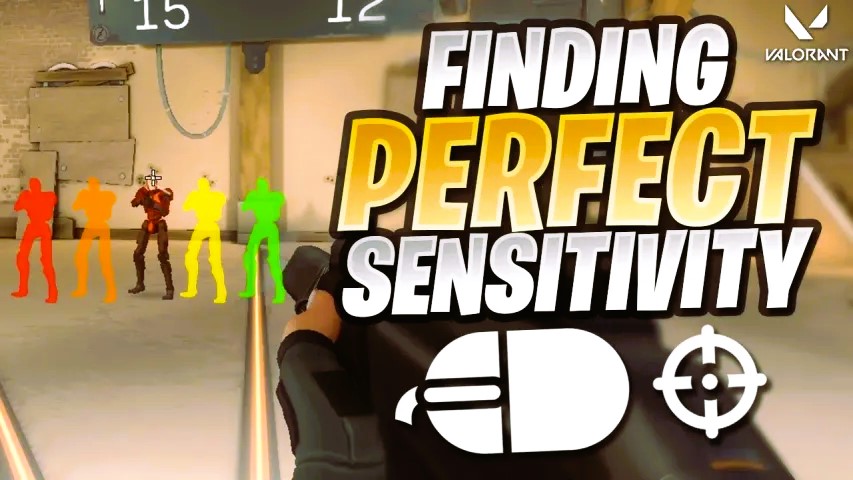
Proper mouse settings are essential for precision aiming. Here’s how to optimize them:
- DPI (Dots Per Inch): 400–800 DPI is recommended for better control. Higher DPI can make aiming inconsistent.
- In-Game Sensitivity: Keep it low (e.g., 1.0–3.0 in most FPS games) for better accuracy. Adjust to personal preference.
- Raw Input: Enable this setting to bypass Windows mouse acceleration and get direct input from your mouse.
- Mouse Acceleration: Disable it to maintain consistent aim and avoid unpredictable movements.
3. Field of View (FOV): Maximizing Vision
- Recommended FOV: 90–110 for most FPS games. A higher FOV gives a wider view of surroundings but can distort vision slightly.
- Lower FOV (e.g., 80 or below): Can improve focus on enemies in front but reduces peripheral awareness. New to ranking up in League of Legends, check out our champion tips and strategy.
4. Audio Settings: Hearing the Enemy First
In competitive FPS games, audio cues are critical. Here’s how to enhance your hearing advantage:
- Headphones Over Speakers: Use high-quality gaming headphones to hear enemy footsteps and gunfire clearly.
- 3D Audio or Virtual Surround Sound: Enable it for better positional awareness.
- Reduce Music Volume: Lower or disable background music to focus on in-game sounds.
- Boost High Frequencies: Some games allow audio adjustments to amplify footsteps and reload sounds.
5. Network & Latency Optimization: Reducing Lag
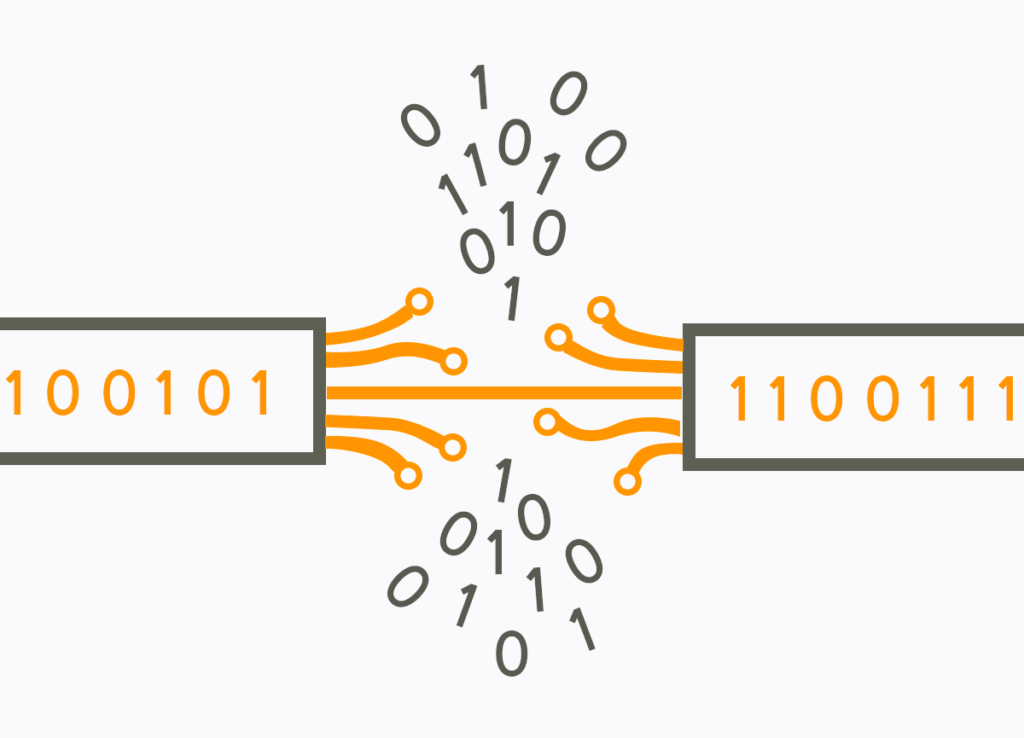
Latency can ruin an FPS experience. Optimize your internet connection with these steps:
- Use a Wired Connection: Ethernet is more stable than Wi-Fi for competitive gaming.
- Choose the Closest Server: Lower ping means faster response times.
- Disable Background Downloads: Turn off updates and streaming services while playing.
- Enable Low Latency Mode (if available): Some games and GPUs offer settings to reduce input lag.
6. Customizing Keybinds for Faster Reactions
- Use Keybinds That Feel Natural: Customize keys for weapon switching, crouching, and reloading to be within easy reach.
- Avoid Default Settings: Many pro players rebind movement keys and abilities for faster reactions.
- Use Mouse Side Buttons: Assign melee, grenade throws, or push-to-talk for better efficiency.
Optimizing your settings in FPS games can drastically improve your performance, reaction time, and comfort. Adjust your graphics for maximum FPS, fine-tune your mouse settings for precision, and ensure your audio and network are optimized for competitive play.
For more details on game performance tuning, check out IGN’s FPS Gaming Guide.